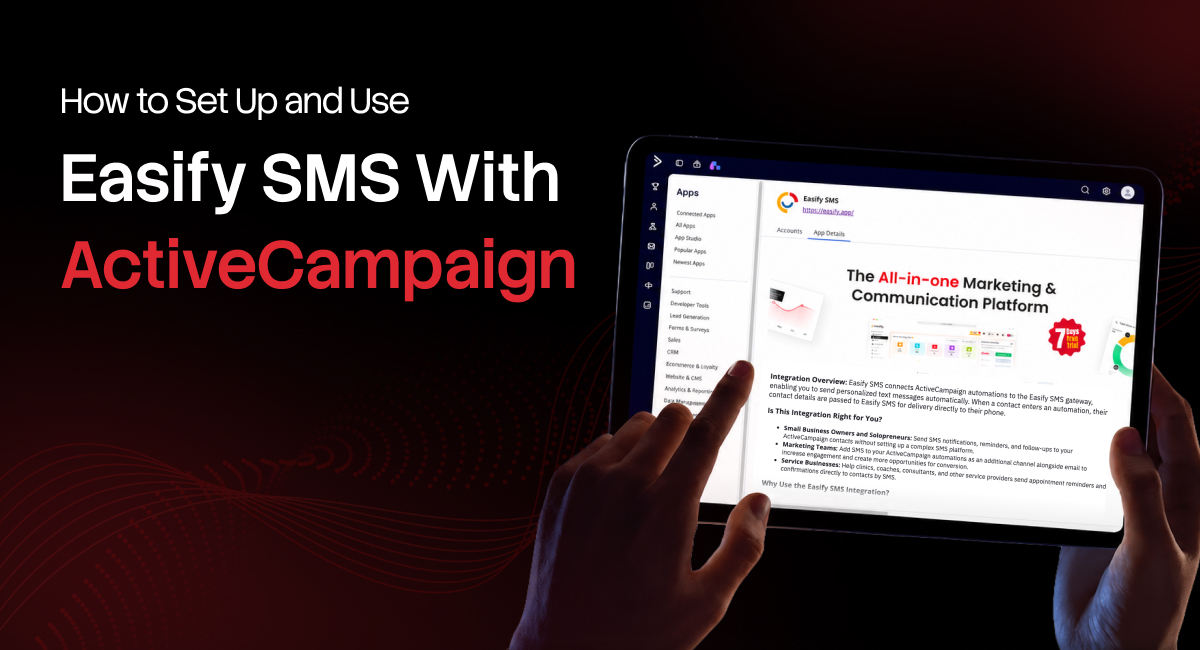
If your ActiveCampaign automations are doing a lot of the heavy lifting but you’re still missing customers who never open emails, it’s time to add SMS to the mix. Learning how to set up Easify SMS in ActiveCampaign takes just a couple of minutes. This guide walks you through the full setup. Let’s get into it!
Why Use SMS with ActiveCampaign?
Most texts are opened within three minutes of being received. If you’re running automations in ActiveCampaign and not including SMS, you’re leaving a fast, direct channel unused.
Here’s what ActiveCampaign SMS lets you do when you bring Easify into the picture:
- Reach contacts through SMS as part of an existing automation
- Automate follow-ups without manually sending messages
- Personalize SMS using contact data
- Send time-sensitive reminders and updates
- Keep SMS communication connected to your existing customer workflows
Automate Customer Follow-Ups
When you set up automated SMS in ActiveCampaign, a text goes out the moment a contact hits a specific step in your workflow. You don’t have to manually chase your leads anymore. Just automatic, consistent follow-up every time.
Why Choose Easify for ActiveCampaign SMS?
There are a few ways to add SMS to ActiveCampaign, but Easify keeps the setup simple and the workflow clean.
ActiveCampaign Automation Integration
Easify SMS for ActiveCampaign plugs directly into your automation as an action. You build your workflow the same way you always do, and Easify SMS sits right alongside your other steps. Contacts enter the automation, progress through it, and texts go out when they hit the right trigger.
Personalized SMS Messages
Easify lets you pull in ActiveCampaign contact fields to make every message feel personal. You can use:
- First Name
- Full Name
- Phone
So instead of “Hi there,” your contact gets “Hi Marcus.” Even the smallest details make a big difference in business texting.
Simple API-Based Connection
Connecting Easify to ActiveCampaign is straightforward. All you need is your Easify External API Token and phone number. That’s it.
Automated SMS Delivery
Once your automation is active, Easify handles the sending. Every contact who reaches that step gets the right message at the right time, automatically.
Prerequisites Before You Start
Before starting, make sure you have these ready:
- An active ActiveCampaign account with access to Automations.
- An active Easify account with SMS capabilities enabled.
- A phone number in Easify to use as the sender.
- Your Easify External API Token, available under Settings → API Settings.
How to Set Up Easify SMS with ActiveCampaign
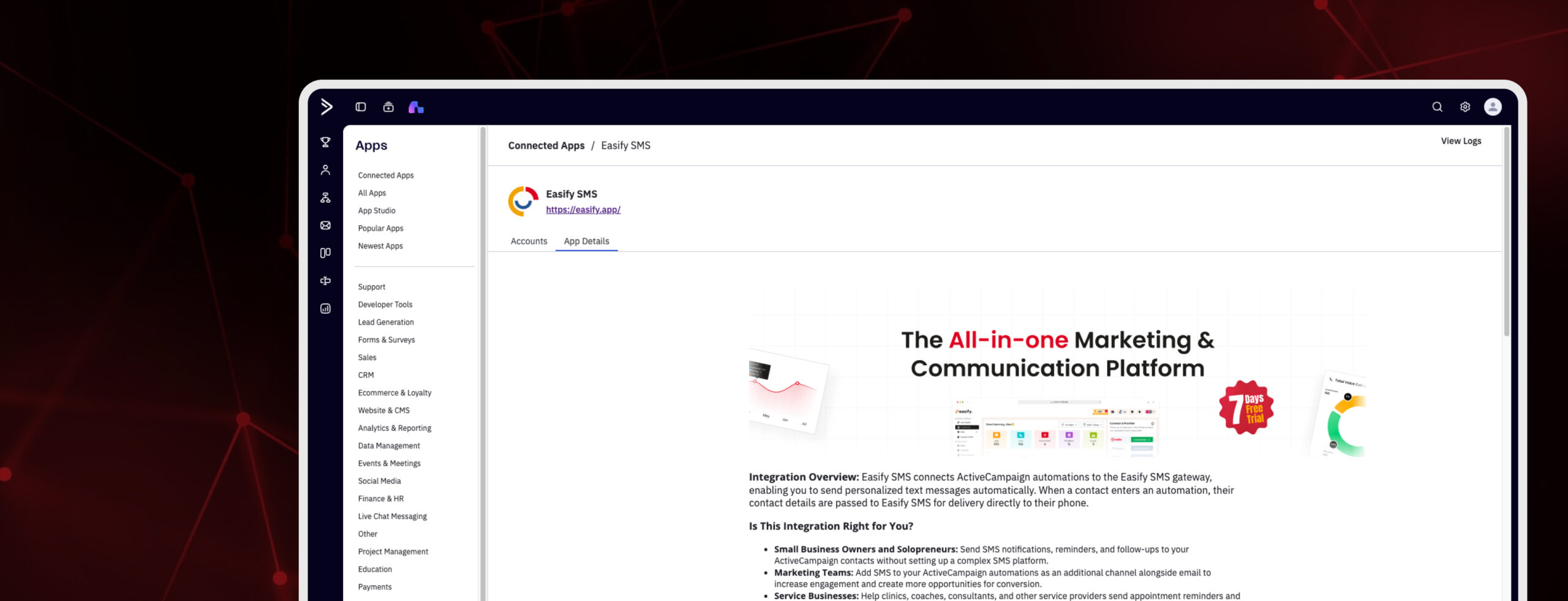
Step 1: Create an ActiveCampaign Automation
- Log in to your ActiveCampaign account
- Navigate to Automations
- Select Start from Scratch
- Confirm your selection to create a new automation
- Click Add to begin building your workflow
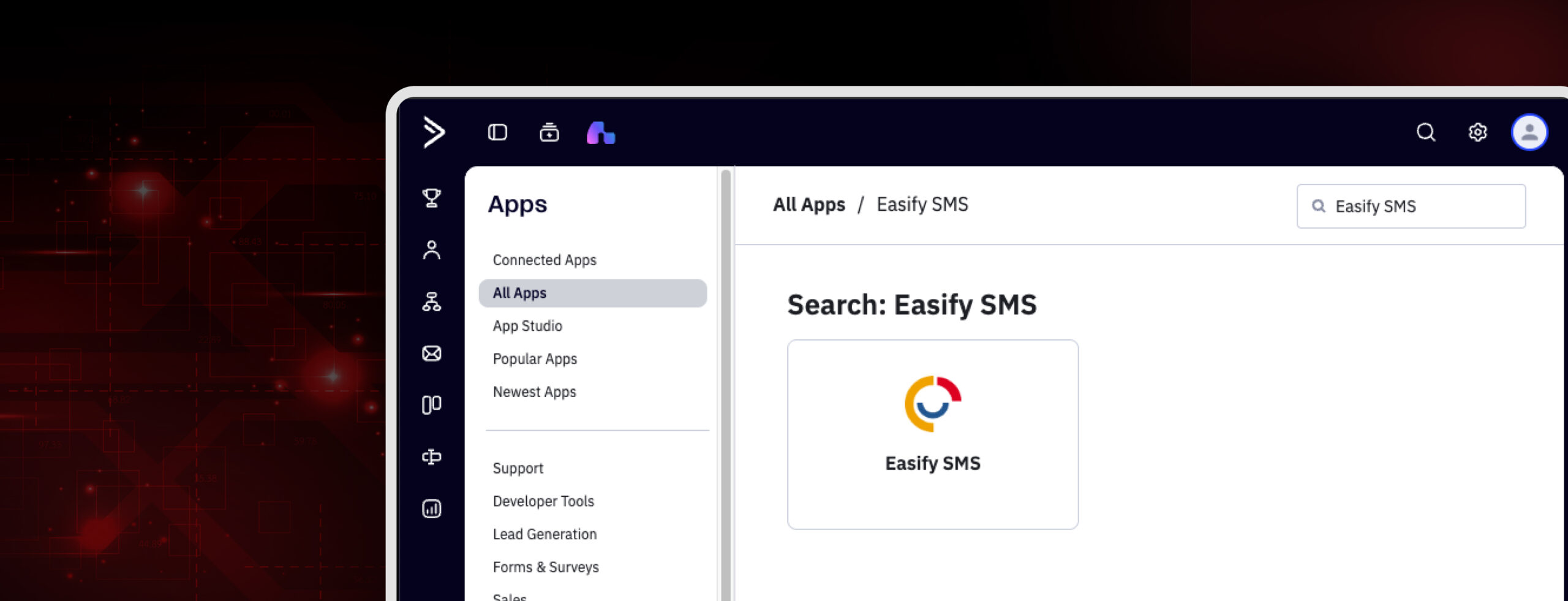
Step 2: Add the Easify SMS Action
- Inside your automation, open Apps
- Search for Easify SMS
- Select Easify SMS, and choose Send an SMS
- The Easify SMS action will be added to your automation
Step 3: Connect Your Easify Account
- Enter your “Easify From Number”
- Enter your “Easify External API Token”
- Click Connect to complete the integration
To find your from/sender number:
- Log in to Easify
- Open Phone Numbers
- Copy the phone number you want to use
- Return to ActiveCampaign
- Paste the number into the Easify “From Number” field
To find your external API token:
- Log in to your Easify account
- Open Settings
- Select API Settings
- Locate your External API Token
- Copy the token
- Return to the ActiveCampaign integration
- Paste the token into the Easify “External API Token” field
How to Create and Personalize Your SMS
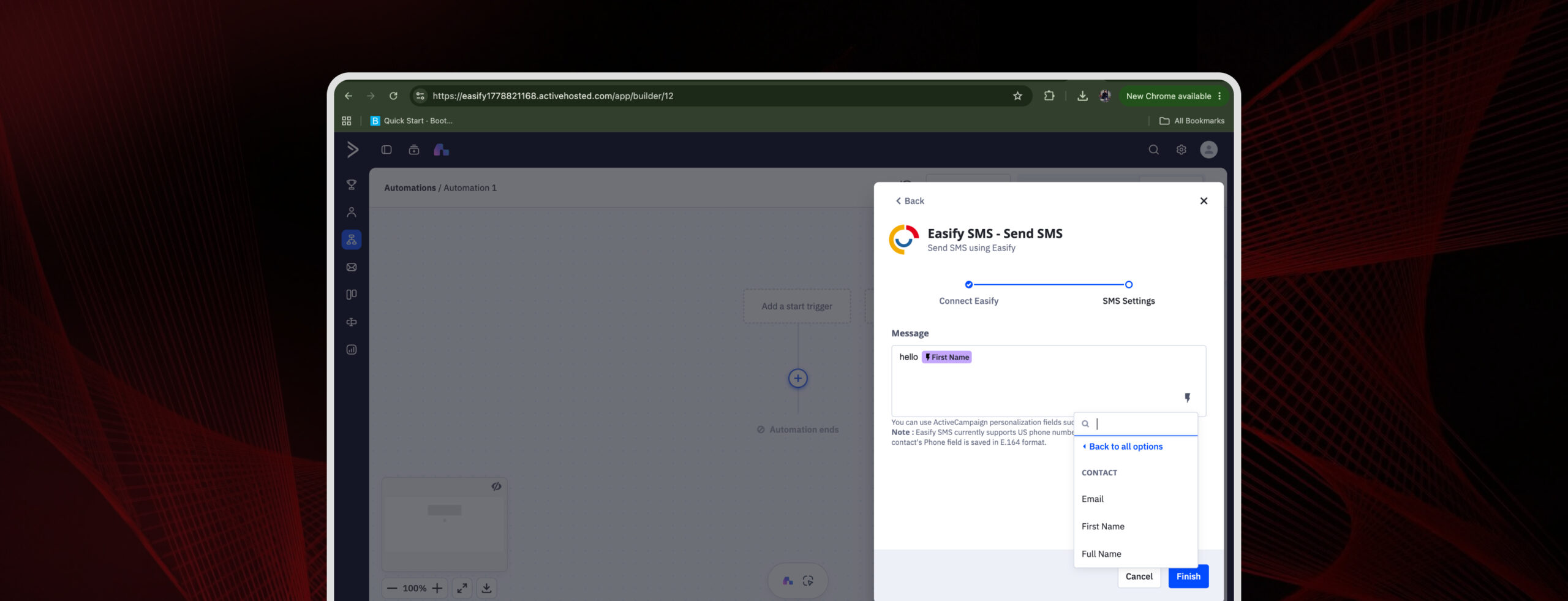
Step 1: Enter Your SMS Message
Enter the SMS you want to send.
Step 2: Add Contact Personalization
Personalize your message by inserting contact details, such as the recipient’s first name, email, etc.
Click the placeholder icon, then:
- Select Contact.
- Select the contact field you want to add.
- Choose First Name.
The placeholder will be added to your message automatically.
Example: Hi [First Name], just checking in about your appointment. Reply YES to confirm.
Using Dynamic Contact Fields
Depending on your ActiveCampaign contact data, you can personalize messages with:
- First Name
- Full Name
- Phone
- Other relevant contact fields
Step 3: Save the SMS Action & Activate
- Complete and review the SMS content
- Check the personalization field
- Click Finish to save the action
- Switch the automation to Active
How to Add Contacts to Your SMS Automation
- Open Contacts in ActiveCampaign
- Select the contacts you want to include
- Click Edit to add the selected contacts
- Select “Add to an automation”
- Choose your Easify SMS automation from the list
- Click Apply Changes and OK to confirm
Once enrolled, contacts progress through the automation and receive the SMS when they hit the configured step.
For a detailed step-by-step guide, check out this video tutorial.
ActiveCampaign SMS Automation Use Cases
Not sure where to start? Here are common ways businesses use ActiveCampaign SMS marketing with Easify.
- Lead Follow-Ups: A lead fills out a form. Instead of waiting for them to check email, you automatically send a text within minutes.
- Appointment Reminders: Send reminders to contacts based on scheduled workflow steps. Save the time you spend on manual reminder calls.
- Customer Onboarding: When a new customer signs up, they get a welcome text with key next steps. Onboarding starts immediately, without anyone on your team doing it manually.
- Sales Follow-Ups: Trigger ActiveCampaign SMS messages after emails, forms, or sales activities.
- Event Reminders: Automatically remind registered contacts about upcoming events or appointments.
- Customer Notifications: Send timely updates based on contact activity or automation conditions – shipping updates, booking confirmations, status changes, whatever matters to your customers.
Best Practices for ActiveCampaign SMS Automation
- Personalize using contact fields, so messages don’t feel generic.
- Keep SMS messages short and focused on one action.
- Use a clear call to action when you need a response.
- Segment contacts so the automation sends relevant messages.
- Match SMS timing to where the contact is in their journey.
- Avoid sending repetitive messages back-to-back.
- Only text contacts who have given appropriate consent.
- Test the automation before activating it for your full list.
- Review SMS activity in Easify after your first send.
Frequently Asked Questions
Can I send SMS from ActiveCampaign using Easify?
Yes. Easify can be added to ActiveCampaign automations as an SMS action, allowing messages to be sent automatically as contacts progress through the workflow.
Does Easify support automated SMS in ActiveCampaign?
Yes. Easify SMS for ActiveCampaign triggers SMS messages directly from ActiveCampaign automation workflows.
Can I personalize ActiveCampaign SMS messages?
Yes. You can use ActiveCampaign contact placeholders to personalize every SMS message.
What do I need to connect Easify with ActiveCampaign?
An Easify account, an available Easify phone number, and your Easify External API Token.
Where can I find my Easify External API Token?
Log in to Easify and navigate to Settings > API Settings.
Can I use SMS and email together in ActiveCampaign?
Yes. Easify SMS can be added alongside other actions inside the same automation, giving you a true multi-channel workflow.
Do I need coding knowledge to set up the integration?
No. The setup uses your Easify credentials and the Easify SMS app inside ActiveCampaign. No custom code required.
Start Using Easify SMS with ActiveCampaign
ActiveCampaign SMS integration with Easify gives you a straightforward way to bring text messaging into your existing automation workflows. Once it’s connected, you can:
- Automate SMS delivery based on contact behavior
- Personalize every message using real contact data
- Trigger communication at the right point in the customer journey
If your ActiveCampaign automations are already doing the work, adding SMS from ActiveCampaign through Easify is the next logical step. Start using Easify SMS with ActiveCampaign today.
Follow Easify on Instagram, LinkedIn, Facebook, and YouTube for tips, updates, and more ways to simplify your business communication.