Business iMessage for Easify

Text customers in blue bubbles from your own number

Easify iMessage sends your Easify messages through the Messages app on a Mac you own. iPhone users get a real iMessage, everyone else gets a text from the same number through your iPhone, and every reply comes back to the same conversation in Easify.

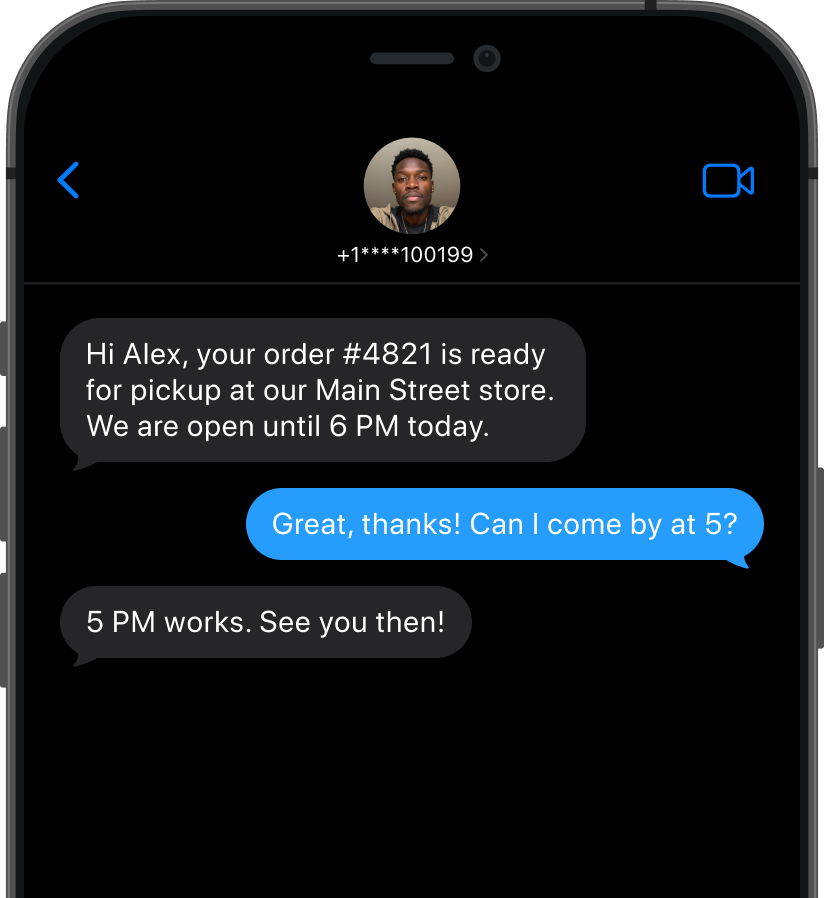
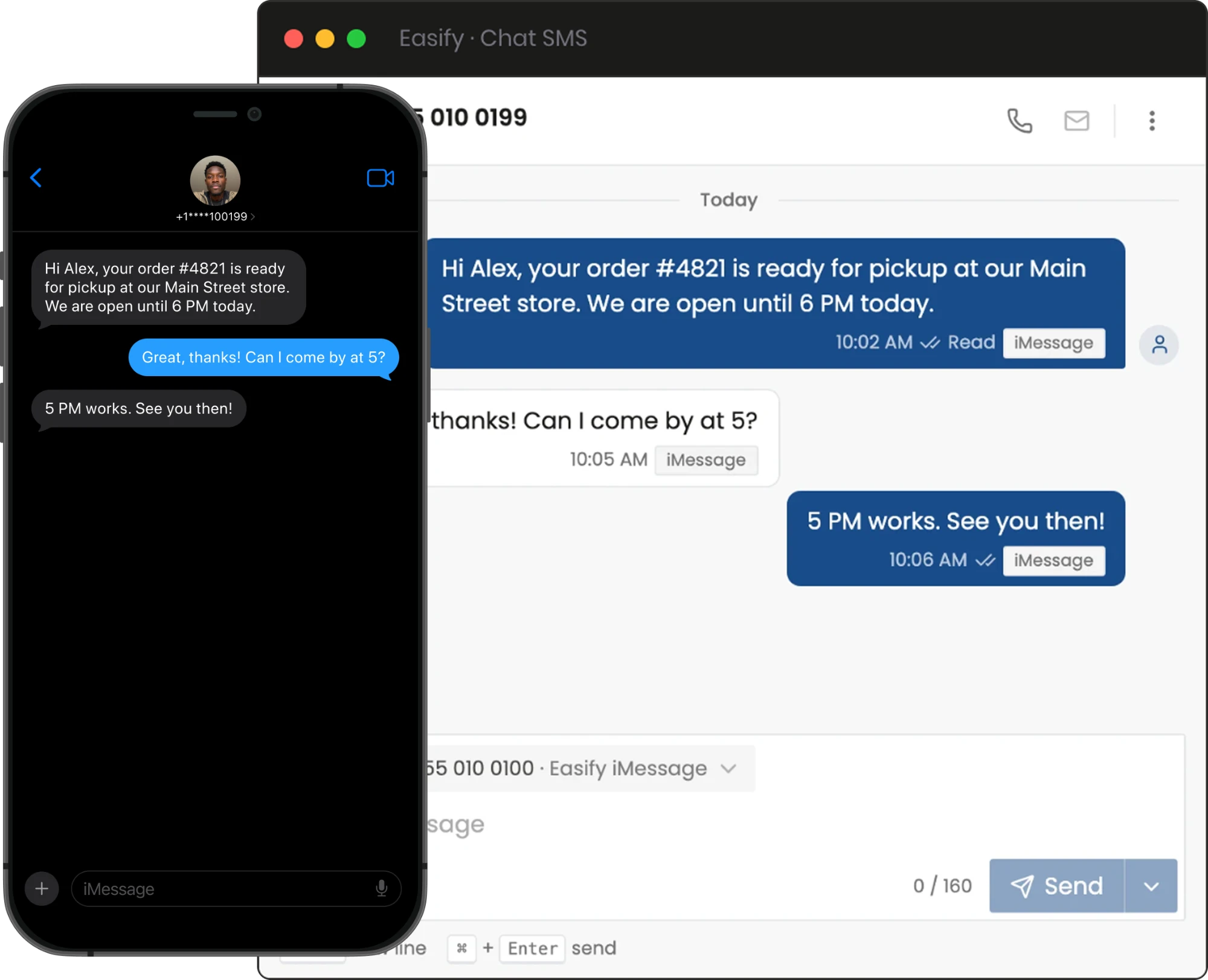
The same conversation on both sides: in Easify Chat SMS the business sends from its Easify iMessage line, and on the customer's iPhone the message arrives in Messages as an iMessage, with the customer's reply and the business's answer

What is Easify iMessage?

A small Mac app that connects the Messages app on your Mac to your Easify account. Easify queues the message, your Mac sends it, and the customer's reply comes back to the same conversation.

iMessage first, every number covered

iMessage goes first. When a number is not on iMessage, the same message goes out through your iPhone instead.

  • iMessageTo anyone on iMessage
  • RCSThrough your iPhone, where supported
  • SMS via iPhoneFor everyone else

How it connects

Install the Mac app, pair it with a one-time code from Easify, and send your first message.

  1. EasifyChat, campaigns, automations, API
  2. Pairs with a code
  3. Your MacThe Messages app, your Apple ID
  4. iMessage / SMS
  5. Your customersiMessage, or SMS through your iPhone

No new number to buy

It sends from the phone number on your Apple ID, so there is nothing to buy or port.

Set up in about 10 minutes

Install the Mac app, pair it with a one-time code from Easify, and send your first message.

Works across Easify

Send from a Mac line in:

  • Chat SMS
  • Quick send
  • Campaigns
  • Automations
  • API

Why choose Easify iMessage?

Reach customers the way they text their friends, without giving up the inbox, automations and reporting your team already uses in Easify.

Book a Demo
  1. 01

    Feels like a personal text

    iPhone customers get a real iMessage from your number, in the app they already use every day.

  2. 02

    Every number covered

    iMessage goes first. When a number is not on iMessage, the same message goes out as SMS through your iPhone, or as RCS where the phone and carrier support it.

  3. 03

    Built to protect your Apple ID

    Random pauses between sends, a slow start after quiet spells, and limits on new contacts: 50 a day and 20 an hour by default.

  4. 04

    One inbox for the team

    Replies land in Easify, and messages you type in Messages on the Mac or iPhone sync too, so everyone sees the full conversation.

It looks like it came from you, because it did

On an iPhone, your message arrives in Messages as an iMessage from your number, not from a short code, and the customer replies in blue, the way they text friends.

Your team still works in Easify, with the whole conversation in one place.

The iPhone shows what the customer sees. Names, numbers and messages are examples.

The customer's iPhone in Messages: the business message about order 4821 arrives as an iMessage, the customer replies in a blue bubble, and the business answers.

How it works

Setting up messages takes about 10 minutes. Easify walks you through each step, and the Mac app checks every permission it needs and tells you what is missing.

  1. 1

    Step 1

    Install the Mac app

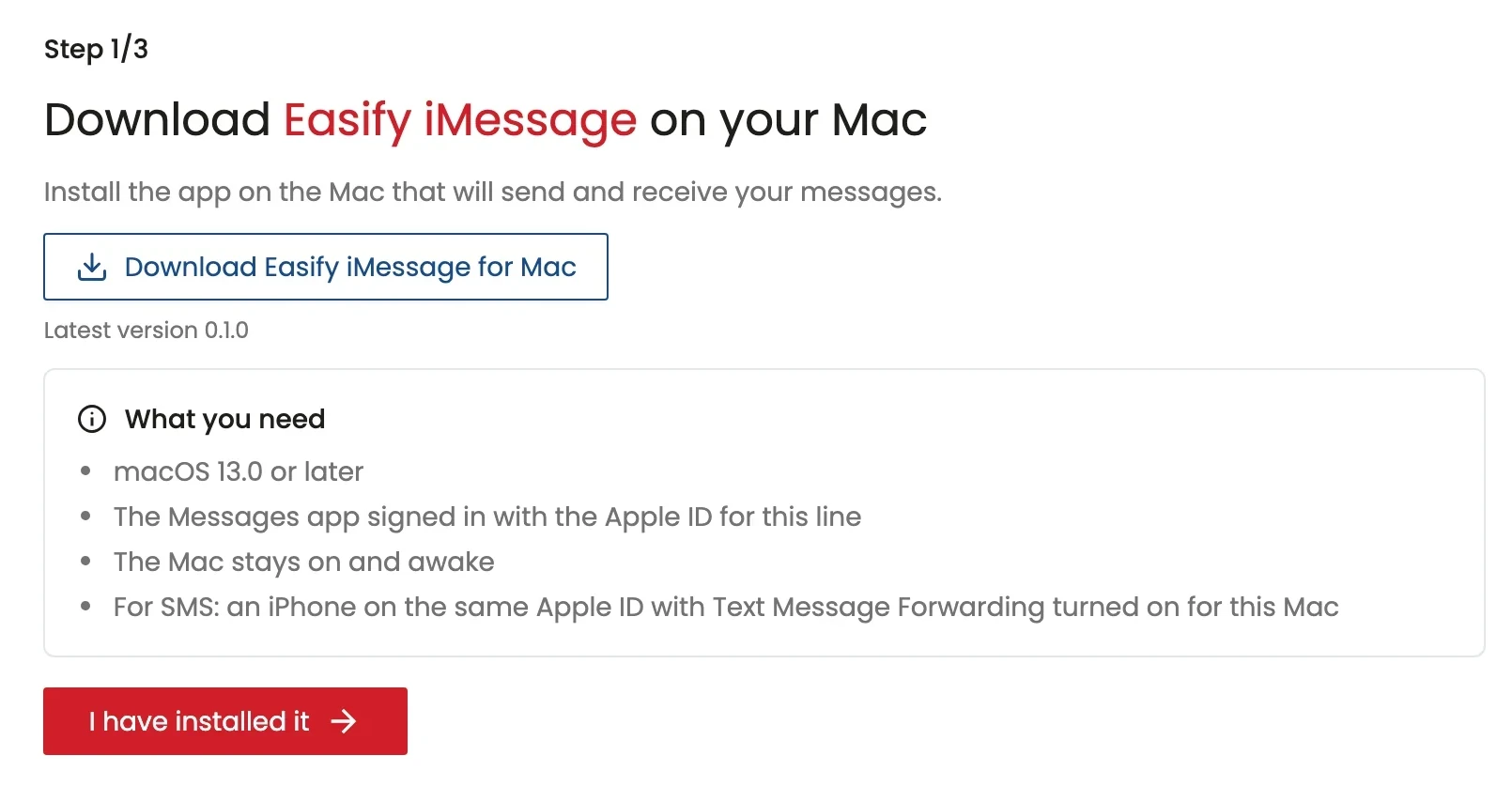
    On a Mac with macOS 13 or later, sign in to Messages with the Apple ID for your business line, then download Easify iMessage from Easify.

    Easify Add a Mac, step 1: download Easify iMessage for Mac, with what you need
    In Easify: download the Mac app and check what you need.
  2. 2

    Step 2

    Pair with a code

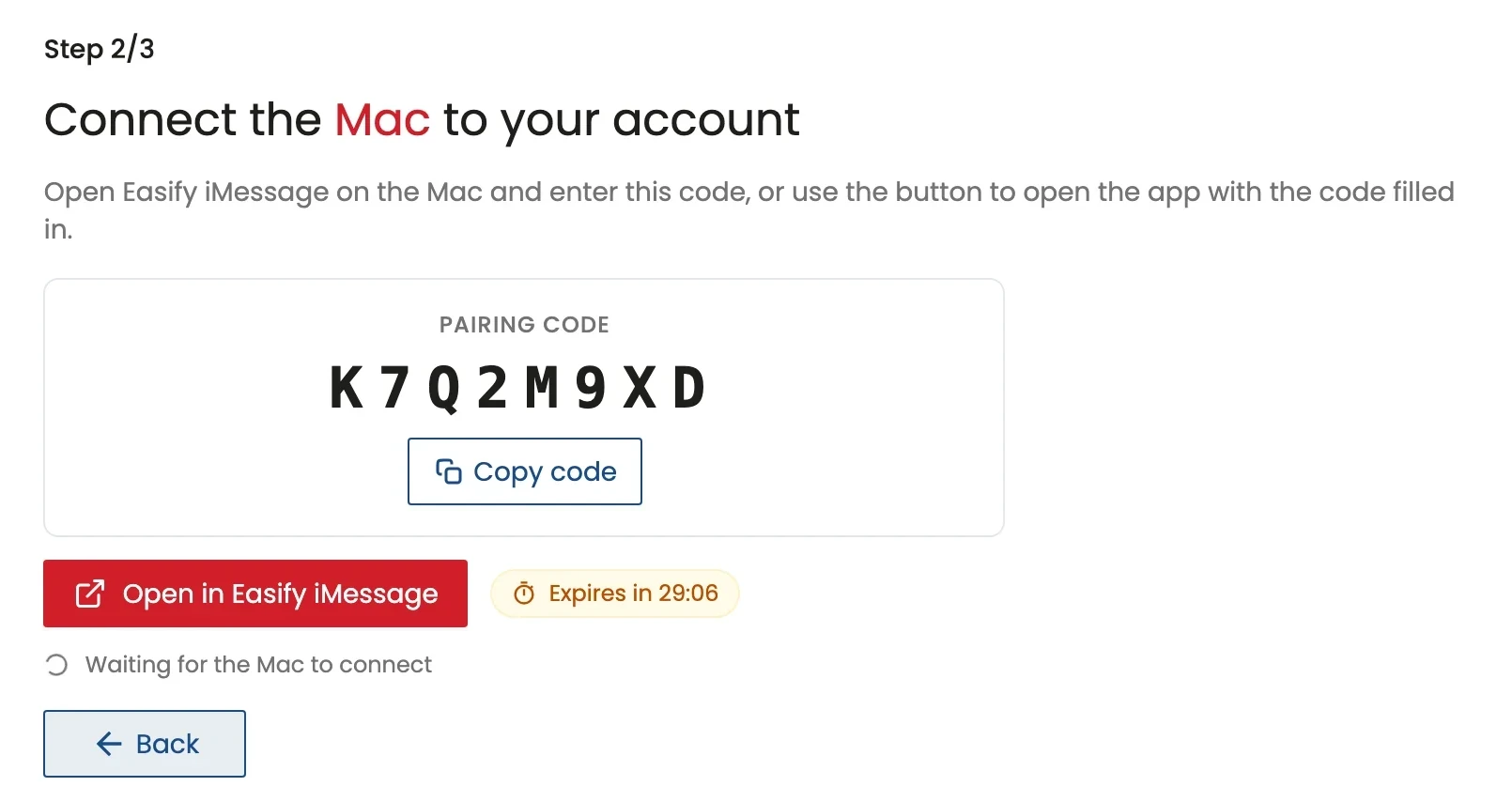
    Enter the one-time code from Easify in the Mac app. It works for 30 minutes and only for your account.

    Easify Add a Mac, step 2: a one-time pairing code with Copy code and Open in Easify iMessage
    In Easify: a one-time pairing code connects the Mac to your account.
  3. 3

    Step 3

    Allow access and send

    Give the app Full Disk Access and permission to control Messages, pick the number customers will see, and send.

    The Mac app checks what it needs and tells you what is missing

    • Full Disk Access
    • Permission to control Messages
    • The number customers will see
    • Text Message Forwarding on your iPhone For people without iMessage

Everything you see in Easify

Easify shows what each Mac is doing, how every message went out, and what the customer did with it.

Delivered and read receipts

See when each message is delivered and, when the customer shares read receipts, when it is read. A label on every message shows how it went out: iMessage, RCS or SMS via iPhone.

Sending rules that protect your Apple ID

Random pauses between messages, a warm-up after quiet spells, daily and hourly limits on new contacts, and optional working hours.

  • OnlineSending and receiving
  • PausedFrom Easify or the menu bar
  • Needs attentionEasify tells you what to fix

Live status for every Mac

Each Mac shows whether it is Online, Paused or needs attention, with today's sent, delivered, read, failed and received counts. If something on the Mac blocks sending, Easify tells you what to fix, and on the Mac the menu bar icon turns yellow or red.

  • Texts through your iPhone

    When a number is not on iMessage, such as an Android phone, the Mac sends the same message as a text through your iPhone, from the same number. The iPhone needs signal and Text Message Forwarding, but it does not have to be near the Mac. If it is off, iMessages still go out, and texts to people without iMessage fail until it is back.

  • Stats by channel

    Pick today, yesterday, the last 7 or 30 days, or your own dates, and see how many messages went out as iMessage, RCS or SMS, and how close the line is to its limits.

  • Works with your automations

    Replies come into Easify like any other text, so your automations, keyword rules and webhooks run on them. Send from a Mac line through the Easify API too, and the message goes out through the Mac.

  • Never sent twice

    If the Mac cannot tell whether a send went through, it marks the message failed instead of sending it again. Messages waiting in Easify go out once the Mac is back online, or fail after 48 hours (you can change this) instead of going out late.

  • Pauses itself when something is wrong

    Pause a Mac from Easify or from the menu bar. It also pauses itself to protect your Apple ID when many messages fail or are not delivered, until you check them and resume.

  • More than one Mac

    Add a Mac for each line. Each Mac sends for its own number, and you can see and manage them all on one page in Easify.

See it on your own Mac line.

Book a Demo

NEWFaceTime Audio

Call iPhone customers over FaceTime Audio

Turn on calls and the same Mac line can make and take FaceTime Audio calls in Easify. No phone line or carrier is used for these calls.

  • Call from the dialer

    Choose your Mac line as the From number and call. The Mac places a FaceTime Audio call and carries the sound between FaceTime and your agent.

  • Answer in Easify

    When a customer FaceTime Audio-calls your line, it rings in Easify for the people who use that line, and the Mac answers in FaceTime for you.

  • Like your other Easify calls

    Transfer and call recording work as they do for your other Easify calls, and FaceTime calls show in your call history, marked FaceTime Audio.

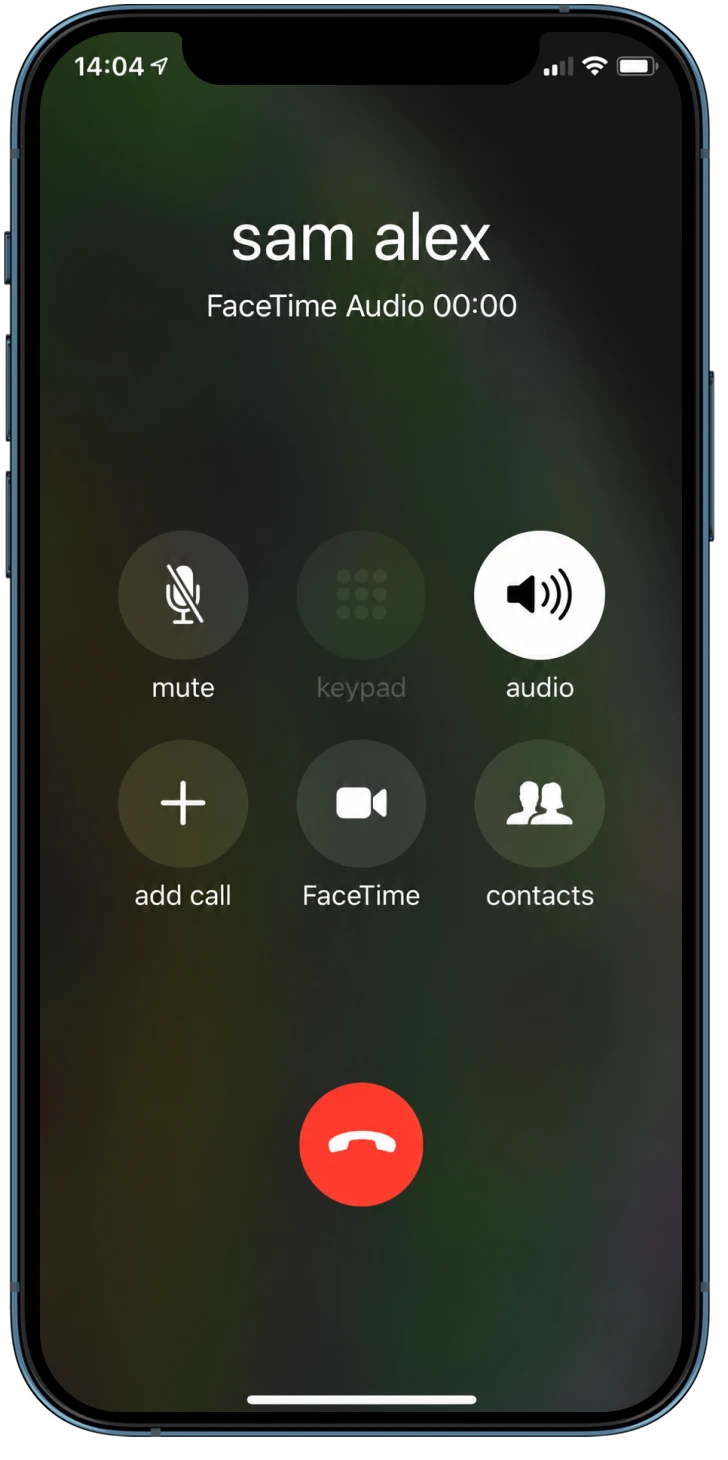
Example: the customer's iPhone on a FaceTime Audio call from the business.

What the call screen says

  • Starting FaceTime on your Mac...Outgoing
  • Ringing on FaceTime...Outgoing
  • Answering on FaceTime...Incoming

Good to know

  • FaceTime reaches Apple devices only. For Android phones and landlines, use another Easify calling line, such as an Easify Connect phone or a Twilio, Telnyx or Vonage number.

  • Calls need macOS 14.2 or later (Easify turns on each macOS version once it is tested) and two free audio drivers, BlackHole 2ch and 16ch. The Mac app's calls checklist shows what is still missing.

  • The call Mac must stay awake and unlocked, with no Bluetooth headset connected, and takes one call at a time.

  • Calling must be on your Easify plan. Calls are billed per minute at your Easify Connect calling rate.

Technical details

What you need, what it sends, and how it is billed.

What you need

The hardware and accounts the line runs on.

Mac
macOS 13 or later, kept on and online. A desktop Mac, or a MacBook on power, works best
Apple ID
Signed in to Messages on the Mac. We recommend one you use for business
iPhone for SMS and RCS
The line's SIM, the same Apple ID, and Text Message Forwarding on for the Mac

How it sends

How each message picks its route, and the limits that protect your number.

Sends as
iMessage first, then SMS or RCS through your iPhone
Receipts
Delivered, and Read when the customer shares read receipts
Default limits
50 new contacts a day and 20 an hour, changeable for each Mac. Replies to people who wrote first never count
Waiting messages
Sent when the Mac and limits allow, or failed after 48 hours (up to 7 days) instead of going out late

Works with Easify

Everything else in Easify treats it like any other line.

Synced to Easify
One-to-one conversations from the moment you connect. Group chats are left out
Send from
Chat SMS, quick send, campaigns, automations and the API
Replies
Run your automations, keyword rules and webhooks, like any other text
Calls NEW
FaceTime Audio to and from Apple devices, macOS 14.2 or later
Billing
Messages at your SMS rates, calls per minute at your Easify Connect rate

Frequently asked questions

Everything you need to know about Easify iMessage.

Do I need an iPhone?

Only for SMS and RCS. iMessages go out from the Mac on its own. For people without iMessage, an iPhone with the line's SIM and the same Apple ID sends the text, with Text Message Forwarding turned on for the Mac. The iPhone can be anywhere with signal and internet; it does not need to be near the Mac or on the same Wi-Fi.

Can I text Android phones?

Yes. Customers without iMessage get your message as an SMS through your iPhone, from the same number.

How does it choose between iMessage, RCS and SMS?

Automatically, for every message. iMessage goes first. When a number is not on iMessage, the Mac hands the message to your iPhone, which sends it as RCS when the customer's phone and carrier support it and as SMS otherwise. Each message in Easify is labelled iMessage, RCS or SMS via iPhone, so you never have to check numbers first.

What happens if my iPhone is off?

iMessages keep going out from the Mac on their own. Texts to people without iMessage cannot go out until the iPhone is back on and online, and Easify marks those as failed, so keep the iPhone charged and connected if you text Android phones.

Are there sending limits?

Yes. Apple publishes no official limit, but it can restrict an Apple ID that sends too much to people who do not know it, so Easify paces every line. By default a line reaches at most 50 new contacts a day and 20 an hour, with a short random pause between sends. Replies to people who wrote to you first never count. Messages over a limit are held and go out when the limit resets. You can change these for each Mac in Easify.

Can I send bulk campaigns with it?

You can pick a Mac line in a campaign, and the limits above still apply, so it suits follow-ups with people who know your business rather than mass sends. A message still waiting after 48 hours fails instead of going out late, so with the default settings one line reaches about 100 new contacts from a single send. For bigger lists, send in batches, raise the wait (up to 7 days) in the Mac's settings, or add another Mac.

Does it work with my automations and the API?

Yes. Replies come into Easify like any other text, so your automations, keyword rules and webhooks run on them. You can also send from a Mac line through the Easify API, and the message goes out through the Mac.

Should I use my personal Apple ID?

We recommend an Apple ID and number you use for business. Once connected, every new one-to-one conversation on that Apple ID shows up in Easify, including messages you type yourself in Messages, and if Apple ever restricts the Apple ID, your personal iMessage goes with it. Group chats are left out, and nothing from before you connect is imported.

Can I keep using Messages on the Mac or iPhone?

Yes. Messages you type there also appear in Easify, so your team sees the whole conversation. You can turn this off in the Mac's settings in Easify.

What happens if the Mac sleeps, restarts or goes offline?

With Open at login on, which is the default, the app starts again by itself and messages waiting in Easify go out when the Mac is back. A message is never sent twice: if the app cannot tell whether a send went through, it marks it failed instead of sending it again. A MacBook sleeps when its lid is closed unless it is on power with an external display.

Can I add more than one Mac?

Yes. Add a Mac for each line. Each Mac sends, and calls, for its own number.

Can I call customers?

Yes, once calls are turned on: FaceTime Audio calls to and from Apple devices, made and answered in Easify. Android phones and landlines cannot be called from a Mac line, so use another Easify calling line for them.

How am I billed?

Messages sent and received on the line are billed per message at your SMS rates, like your other Easify numbers. FaceTime calls are billed per minute at your Easify Connect calling rate. SMS through your iPhone also uses your mobile plan.

Do the usual messaging rules still apply?

Yes. Message people who expect to hear from you, and follow consent, opt-out and privacy rules where you and your customers are. Using iMessage does not change that.
Your Mac is ready to text your customers

Blue bubbles from your own number, with every reply in Easify.