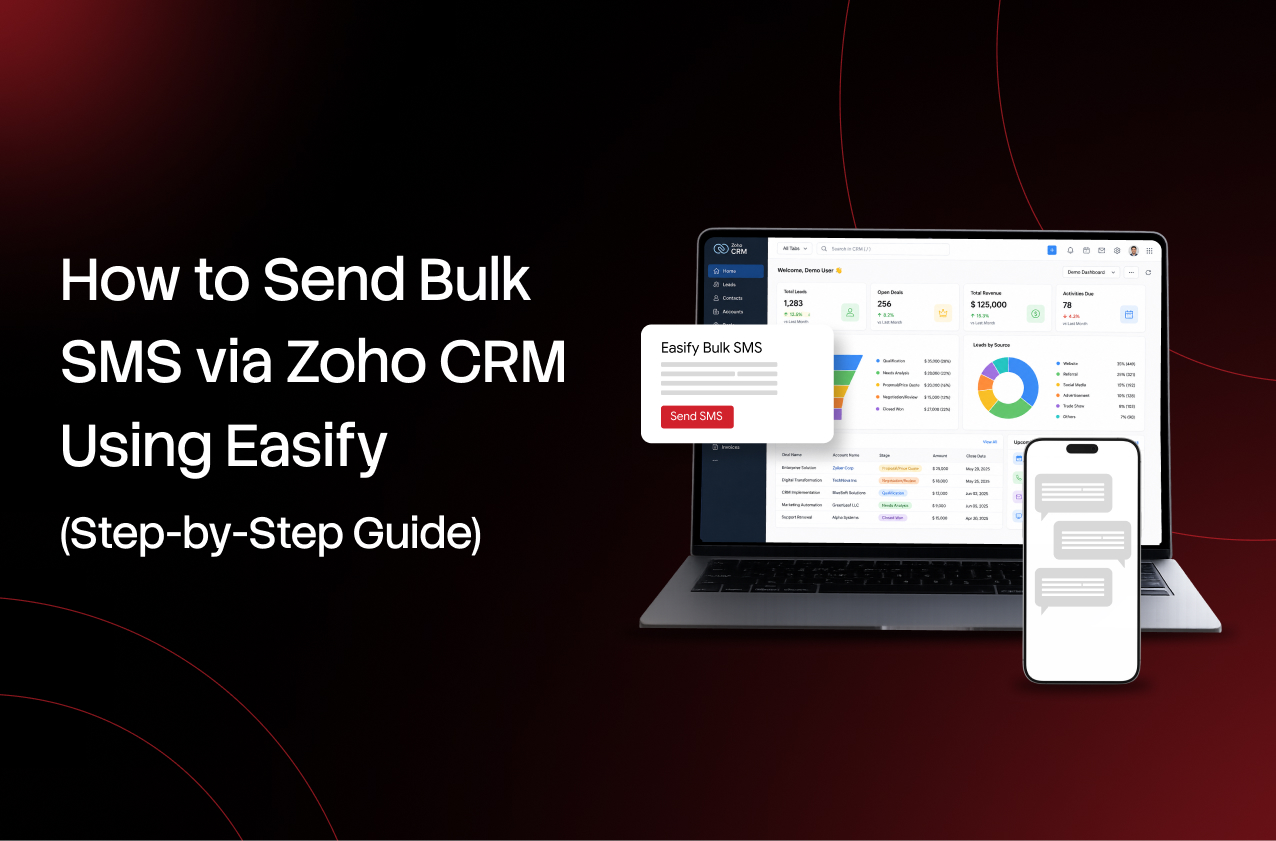
For years, Zoho CRM has helped businesses manage leads while building stronger customer relationships. Your CRM holds thousands of contacts, but the missing piece might be a way to connect with those leads at scale.
Wondering how to send bulk SMS via Zoho CRM? Most users assume they need multiple tools, but you can send personalized bulk texts directly from your CRM without exporting contacts or leaving your workflow. This guide shows you exactly how to do it using Easify’s Zoho CRM integration.
Why Send Bulk SMS from Zoho CRM?
Bulk SMS gets read within minutes. When your CRM and SMS work together, your outreach gets a whole lot easier to manage. Here’s what you gain:
- Reach customers instantly from your CRM: You don’t have to log into separate tools. Your contacts are already in Zoho. Your messages can go out from there too.
- Send personalized messages using CRM data: Pull in first names, company names, etc. Every message feels one-on-one even when you’re texting hundreds.
- Save time with bulk messaging: Select the contacts, write a message, add placeholders, and send. What used to take hours gets done in minutes.
- Improve follow-ups and customer engagement: SMS marketing with Zoho CRM lets you stay connected with customers while keeping your workflow simple.
- Keep all customer communication within one platform: You don’t have to deal with data silos or switch between apps. Everything lives in Zoho where your team already works.
Why Choose Easify for Zoho CRM SMS?
Easify SMS is a native integration designed specifically for businesses that want both reliable and scalable Zoho CRM bulk SMS without the setup headaches.
Here’s what sets it apart:
Native Zoho CRM Integration
Easify installs directly through the Zoho Marketplace. There’s no middleware or complex API work. Once installed, it lives inside your CRM as a natural extension of your existing workflow.
Dynamic Personalization with Placeholders
Generic blasts don’t work when it comes to bulk SMS. Easify lets you insert fields like first name, last name, and company name directly into your message template. This way, every recipient gets a message that looks like it was written uniquely for them.
Real-Time Delivery Status
You can know exactly which messages landed and which didn’t. Delivery status updates appear inside Zoho CRM.
Prerequisites Before You Start
Before you send your first bulk message via Easify in Zoho CRM, get these four things in place:
- Active Easify account.
- Easify Extension installed in Zoho Marketplace.
- Easify SMS API token and phone number.
How to Send Bulk SMS via Zoho CRM Using Easify
Here’s the step-by-step walkthrough; follow it, and you’ll be able to do this in under five minutes.
Step 1: Install the Easify Extension
- Log in to your Zoho CRM account
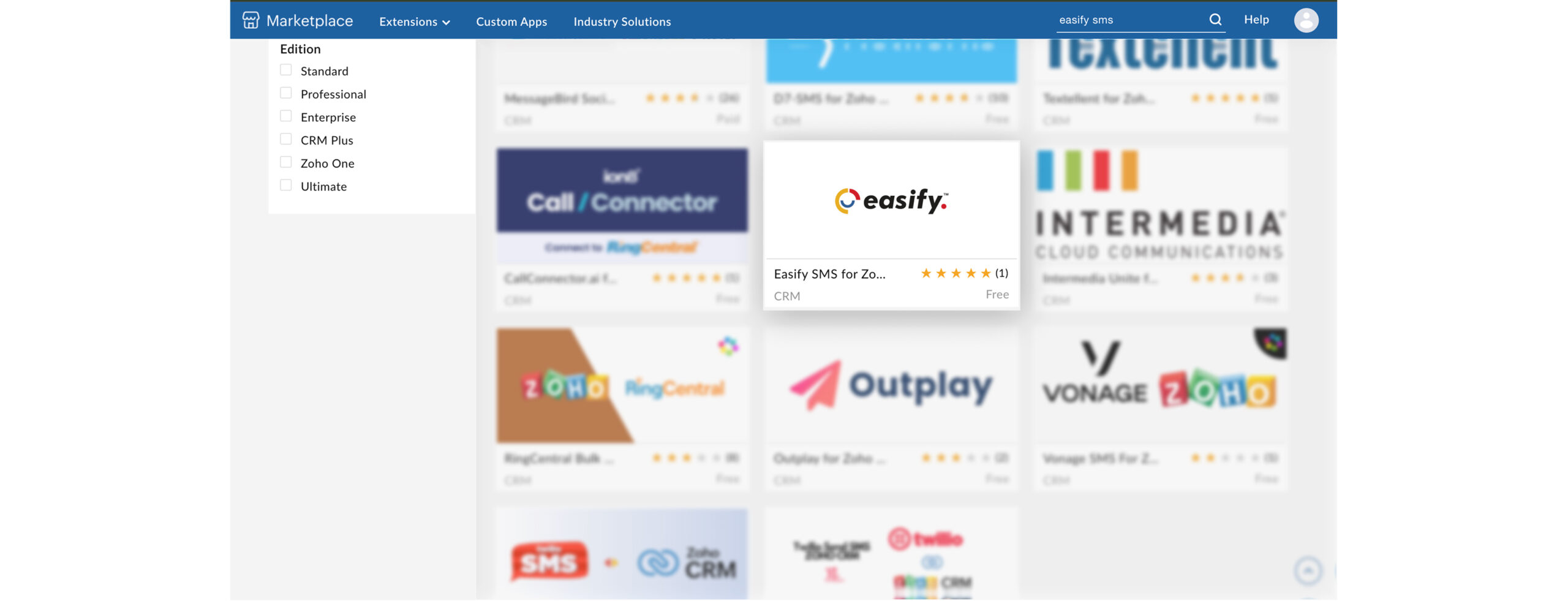
- Once you’re in, head to the Marketplace
- Search for Easify SMS for Zoho CRM
- Once the overview page appears, click Install
Step 2: Connect Easify to Zoho CRM
- Once installed, you can continue to configure the extension
- During configuration, enter the dedicated phone number you want to use along with your Easify SMS API token
- To copy your SMS API Token, head to your Easify account. Under Settings, head to API settings, and copy your SMS API token
- Go back to Zoho CRM and paste the number
- Click Save
Step 3: Select Your Audience
- Open the Leads module in Zoho CRM
- Filter or search to find the group you want to reach
- Select multiple records using the checkboxes in the list view
- Click on the Send SMS Easify button
Step 4: Compose Your SMS
- Write your message in the text field
- Insert CRM placeholders where needed. For example:
Hi {First Name}, just following up on your quote from last week. Want to hop on a quick call today?
The placeholder pulls the actual name from each contact’s record automatically.
Step 5: Send Your Bulk SMS
- Review your recipient list one more time
- Confirm your message looks right
- Click on Send SMS
Done. Your Zoho CRM bulk SMS campaign is live. If you’d like to see it in action, watch this video.
Track SMS Delivery and Campaign Performance
Sending the message is only half the job. Knowing what happened next is equally important. Inside Zoho CRM, you’ll see a summary of successful and failed deliveries right after sending. No need to go anywhere else for a quick check.
Best Practices for Bulk SMS in Zoho CRM
- Segment contacts before sending. Don’t blast your entire database with the same message. Instead, group contacts by stage, location, industry, or behavior.
- Personalize messages using CRM fields. Use placeholders, always. A message that starts with someone’s name performs better than one that doesn’t.
- Keep messages concise. Say what you need to say in under 160 characters when possible. People skim texts, so get to the point as soon as possible.
- Include a clear call-to-action. Every message should tell the reader what to do next.
- Send only to opted-in contacts. TCPA compliance requires consent before you send marketing texts. Make sure your lists are clean and opted-in before you use SMS marketing with Zoho CRM.
Common Use Cases
Bulk SMS for Zoho CRM works across industries and team functions. Here are scenarios where businesses use it every day:
- Lead follow-ups: A prospect fills out a form on your website. They’re added to Zoho. Within minutes, an automated or manually triggered SMS goes out.
- Appointment reminders: Send reminder texts before a scheduled call or service visit.
- Promotional campaigns: Running a limited-time offer? Texts reach customers faster than email and with significantly higher open rates.
- Customer support updates: Keep customers informed on orders, service requests, or account changes with quick messages.
- Event invitations: Promoting a webinar, open house, or product launch? A personalized SMS invite stands out.
- Payment and invoice reminders: A gentle text reminder reduces overdue invoices without the awkward phone call.
- Customer feedback requests: After a purchase or service interaction, a short SMS asking for a quick review or rating works better than a long email survey.
Frequently Asked Questions
- Can I send bulk SMS directly from Zoho CRM?
Yes, with the Easify extension installed, you can select multiple leads or contacts from within Zoho CRM and send them SMS messages in a single action - Does Easify support message personalization?
Yes. Easify supports dynamic CRM placeholders like first name, last name, and company name. This way, each recipient receives a customized version of your message - Can I send SMS to multiple contacts at once?
Yes. That’s exactly what bulk SMS for Zoho CRM means. Select as many records as you need, write your message once, and send to all of them simultaneously - Where can I view SMS delivery reports?
You can view a delivery summary inside Zoho CRM right after sending. See which messages were delivered and which failed - Do I need an API token to connect Easify with Zoho CRM?
Yes. Your Easify SMS API token is how the two platforms authenticate with each other. You’ll find it in your Easify account settings.
Conculsion
If your team is manually copying contacts into a separate SMS tool, you’re doing it the hard way. With Easify’s Zoho CRM SMS integration, you can send personalized bulk messages directly from the platform.
Ready to Simplify SMS in Zoho CRM?
Connect Easify SMS with Zoho CRM to send bulk SMS, automate customer messages, and manage two-way conversations directly from your CRM. Get started with Easify today and take your Zoho CRM SMS communication to the next level.
Connect Easify to your Zoho CRM account and send personalized bulk SMS campaigns without leaving your CRM.
Start with Easify today and launch your first bulk SMS campaign from Zoho CRM in minutes.
Follow Easify on Instagram, LinkedIn, Facebook, and YouTube for tips, updates, and SMS marketing strategies that actually work.