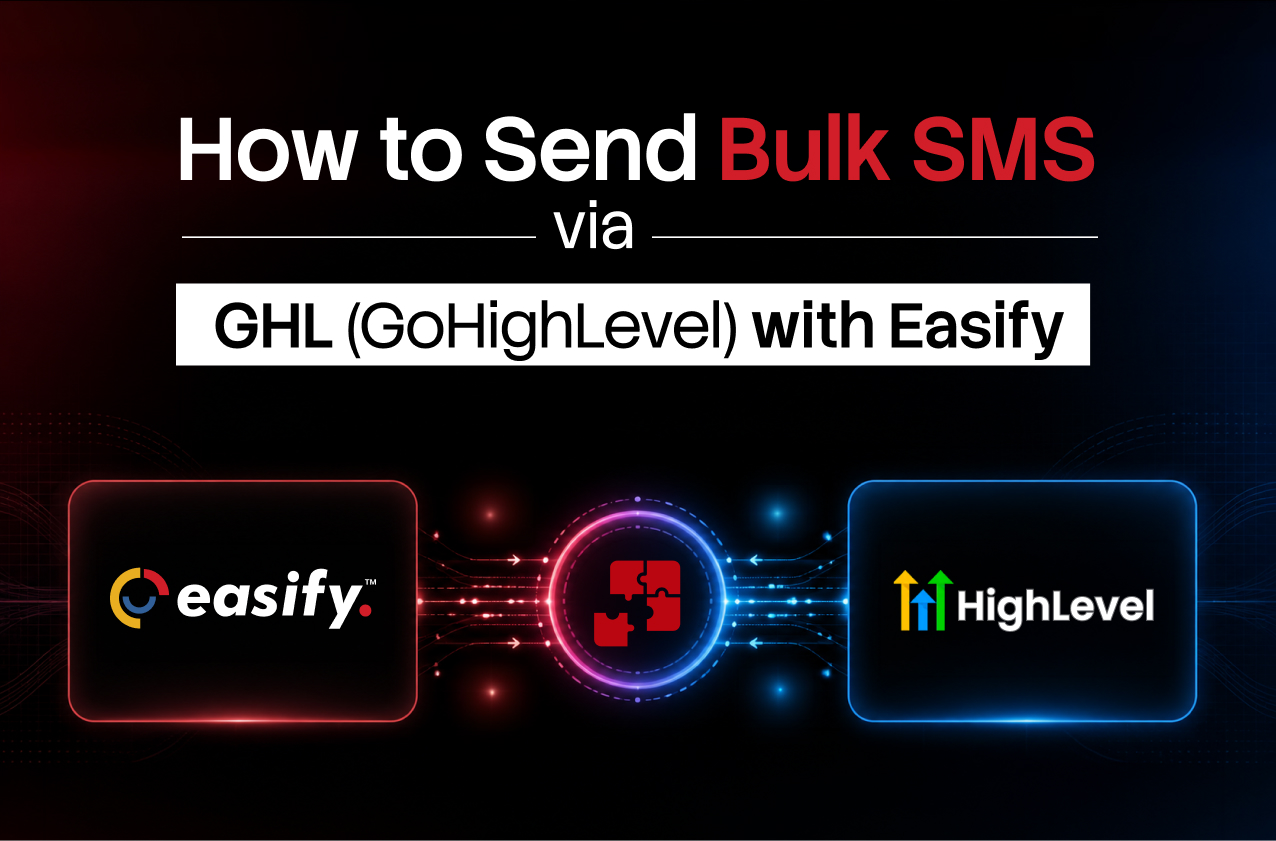
GoHighLevel, commonly known as GHL, is a CRM and automation platform that helps businesses manage customer relationships and marketing activities from one place. It allows businesses to manage clients, automate workflows, and streamline customer engagement without relying on multiple tools.
Bulk SMS is a fast and effective way to reach customers directly. By integrating Easify SMS with GHL, businesses can take their SMS communication further with scalable SMS delivery, workflow automation, and two-way conversations. This blog covers how to set up the integration, send bulk SMS, and manage conversational SMS through GHL.
Why Use Easify SMS with GoHighLevel?
Send bulk SMS from GHL
Reach multiple customers at once using Easify, without switching between different platforms. Manage your SMS communication directly from your GHL account.
Automate SMS Through Workflows
Send automated SMS messages based on customer actions, preferences, and other triggers configured in your GoHighLevel workflows.
Send and receive SMS in GHL Conversations
Easify supports two-way SMS conversations, allowing customers to reply to your messages and enabling you to continue the conversation directly within GHL. This makes it easier to stay connected and build better customer relationships.
Use your Easify phone numbers
If you already have phone numbers in Easify, you can use them with GHL after connecting your accounts. Your account details and relevant information are shared during the integration, making the setup easier.
Centralize customer communication
Keep all your customer conversations connected in one place. With Easify and GHL working together, you can manage your customer communication more efficiently without constantly switching between platforms.
Ready to simplify your SMS communication? Get started with Easify today.
Prerequisites
Before sending SMS from GHL with Easify, make sure you have the following ready:
- Install the Easify SMS app from the GHL App Marketplace to connect your Easify account with your GHL location.
- Generate your External API Token from your Easify account for authentication.
- Select the phone number you want to use to send messages.
How to Set Up Easify SMS in GoHighLevel
Step 1: Install the Easify SMS App
Open the GHL App Marketplace and search for Easify. Install the app to connect Easify with your GHL. Once installed, you can access the Easify SMS tab from the GHL sidebar.
Step 2: Configure the Integration
To set up the integration, add your External API Token from the API settings section in Easify.
Select the phone number you want to use for conversations and outbound SMS and connect your account to complete the setup.
Connect Easify SMS with your GHL account and start sending SMS campaigns today.
How to Send Bulk SMS via GHL Workflows
Step 1: Create or Open a Workflow
Go to the Automation section in your GHL account. Click Create a Workflow or open an existing workflow where you want to send your SMS messages.
Step 2: Add the Easify SMS Action
Add the Easify SMS action to your workflow. This action allows you to send SMS messages to the contacts that enter the workflow.
Step 3: Write Your SMS Message
Create the message you want to send to your contacts. You can personalize your messages by adding the contact’s name and other relevant details. Then, select the phone number you want to use for sending the messages.
Step 4: Publish the Workflow
Review your workflow settings and SMS message to make sure everything is correct. Once you’re ready, publish the workflow to activate it.
Step 5: Send Bulk SMS
Go to the contacts section and select the contacts you want to target. Add them to the workflow or trigger the workflow to send messages to the selected contacts.
How to Send SMS Through GHL Conversations
Step 1: Open the Conversations Module
Once the integration is set up, open the Conversations module in your GHL account to start messaging your contacts.
Step 2: Select a Contact
Open your contact list and select the contact you want to start a conversation with.
Step 3: Choose Easify as the Chat Type
After selecting a contact, choose Easify as the chat type to send your message.
Step 4: Create the Conversation
Click on the option Create a New Conversation and start messaging your selected contact.
Step 5: Type and Send Your SMS
Enter your message in the chat box and send the SMS. You can continue the conversation directly through GHL.
Step 6: Manage Two-Way Conversations
View replies directly in GHL and continue conversations without switching platforms. Messages stay synchronized between Easify and GHL.
Best Practices for Bulk SMS in GHL
Segment your contacts before sending
Organize your contacts into relevant groups before sending your messages. This helps you send the right message to the right audience.
Personalize messages where possible
Customers respond less to generic messages. Personalize your messages by using the recipient’s name or other relevant details to make your communication more targeted and engaging.
Ensure recipients have opted in
Always get customer consent before sending out any message. Respecting their preferences helps build trust and ensures compliant messaging.
Monitor replies and campaign performance
Monitor message performance and customer replies to identify what works best, make necessary changes, and optimize future messaging.
Frequently Asked Questions
Can I send bulk SMS from GoHighLevel using Easify?
Yes, you can use Easify SMS to send bulk SMS directly through GoHighLevel.
How do I install the Easify SMS app?
Search for Easify SMS in the GHL App Marketplace and install the app to connect it with your GHL account.
Where do I get my Easify External API Token?
Log in to your Easify account, go to Settings, and open API Settings. Click on External API Token to view and copy your token.
Can I send automated SMS with GHL workflows?
Yes, you can use GHL workflows with Easify SMS to send automated SMS based on specific triggers and customer actions.
Can I receive SMS replies inside GoHighLevel?
Yes, Easify allows you to receive and manage SMS replies directly within GoHighLevel. Messages are synchronized between Easify and GHL, allowing you to view and manage conversations from both platforms.
Conclusion
Sending bulk SMS through GHL doesn’t have to be complicated. You can easily integrate Easify SMS with your GHL account and extend your messaging capabilities. Once connected, you can send bulk SMS through GHL workflows, automate campaigns, and manage two-way conversations all in one place.
Install the Easify SMS app from the GHL App Marketplace and get started with smarter, more efficient SMS communication today.
Ready to Simplify SMS in GoHighLevel?
Connect Easify SMS with GoHighLevel to send bulk SMS, automate customer messages, and manage two-way conversations from one platform. Get started with Easify today and take your GHL SMS communication to the next level.