Connecting Your Device
First-Time Setup
To connect your Android phone with Easify, follow the steps below.
1. Download the Easify Connect App
From the Easify web dashboard, go to Settings → Gateways and click the Download button. Alternatively, you can use the direct download link provided on the page.
2. Install the APK
Install the downloaded APK on your Android phone. If you see a Google Play Protect warning, tap Install anyway. The app is safe but not listed on the Play Store.
3. Disable Play Protect (If Required)
If installation is blocked, disable Play Protect temporarily:
- Open the Play Store
- Tap your profile icon
- Go to Play Protect
- Open Settings (gear icon)
- Turn off Scan apps with Play Protect
4. Open the App and Scan QR Code
Launch the Easify Connect app and tap Scan QR Code.
5. Generate QR Code from Dashboard
In the Easify web dashboard, go to Settings → Gateways and click Add Gateway. A QR code will appear on the screen.
6. Scan and Connect
Use your phone to scan the QR code displayed on the dashboard.
7. Grant Required Permissions
When prompted, allow the following permissions:
- SMS – to send and receive messages
- Phone – to detect your phone number
- Notifications – to keep the app running in the background
Once completed, your phone will be successfully linked to Easify.
The Power Button
The main button on the Easify Connect home screen controls your connection status:
- Red – Disconnected (tap to connect)
- Green – Connected and ready to send messages
For best results, keep the app running in the background and avoid force-closing it.
Staying Connected
To ensure reliable message delivery:
- Keep your phone sufficiently charged
- Maintain a stable internet connection (WiFi or mobile data)
- Do not put the app to sleep or restrict its battery usage
- The app displays a persistent notification when connected — this is expected behavior and ensures uninterrupted operation
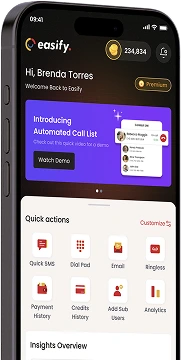
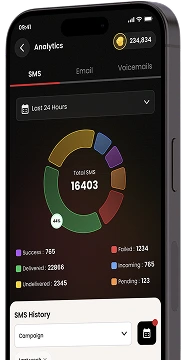
Download Our Mobile App
Get our Mobile App to get real-time notifications & more.



- Quick Links
- MCA
- Features
- Pricing
- Services
- Industries
- Contact Us
- Chat with us

2025 Global Recognition Award